HARMONIZER / METATRADER 5
Installing the EA
Five minutes, once. The WebRequest step is the one people miss, and it is the reason an EA that looks installed refuses to trade.
Copy the file into MetaTrader
In MetaTrader 5, open File → Open Data Folder. That is the terminal's own folder, not where the program is installed.
MQL5 → Experts put the .ex5 you downloaded hereAllow the licence check
Harmonizer verifies its licence over HTTPS each day, and MetaTrader blocks outbound requests until you list the address.
Tools → Options → Expert Advisors → Allow WebRequest for listed URLhttps://raw.githubusercontent.comhttps://github.comCheck your account licence
Trial · one account
Your trial account is already bound when the trial is issued. Check that you are using that MT5 account.
Paid · five licences
Open Licences and bind the MT5 accounts you want to use. If you trialled first, that account is relicensed automatically at the full term and counts as one of the five.
Attach it to a chart
Drag the EA onto a chart for one of the recommended symbols, on the recommended timeframe, with Algo Trading enabled in the toolbar. It trades several symbols from that one chart — set them in its inputs rather than opening a chart per pair.
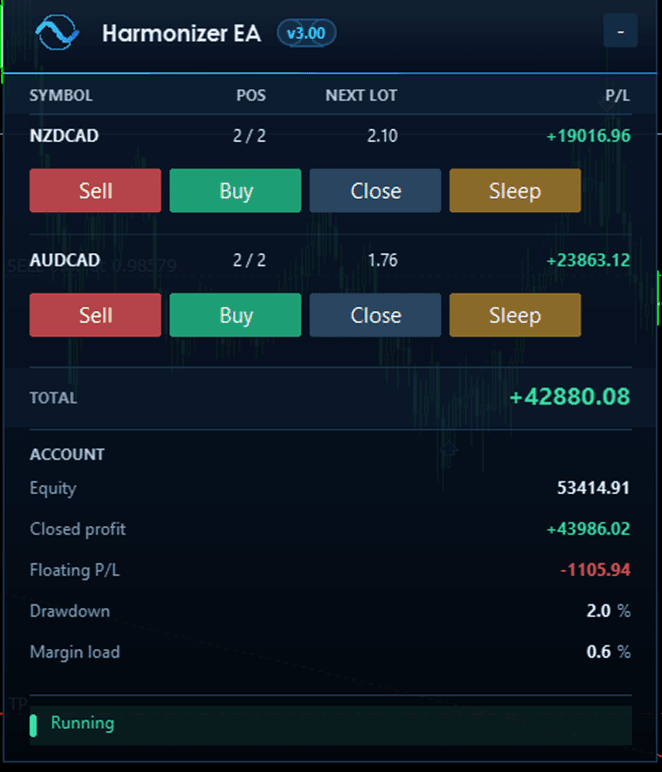
Reference: the Harmonizer panel
Run it on a VPS
Both EAs have to stay running to manage their positions, and a laptop that sleeps or a home connection that drops overnight leaves trades unmanaged. Any MT5 VPS works, including the one built into MetaTrader.